
Every message you send in Telerivet reaches someone in your contact list. Contacts are not just a directory of phone numbers: they are the data layer that connects your audience to every campaign you broadcast, every automated service you run, and every report you read. How you structure your contacts early on determines how much you can do with them later. This article introduces how contacts work, how they enter your project, and what to think through before you start importing.
What you see on the Contacts page
When you open Contacts in Telerivet, the left panel shows your groups with a count of members in each. The main area shows your full contact list with columns for name, phone number, and any fields you have chosen to display. Two buttons sit at the top of the page: Filter, which opens the filter builder, and Add group, which creates a new group or saves your current filter as a dynamic group.
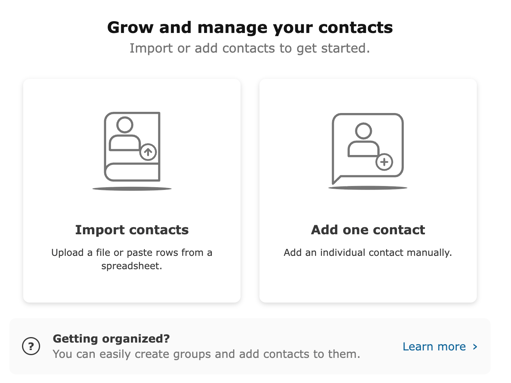
If your project is new, you will see two options in the centre of the screen: Import contacts (upload a file or paste rows from a spreadsheet) and Add one contact (enter a name, phone number, and group manually). Both paths lead to the same result: a contact record your project can act on.
How contacts enter your project
There are few ways contacts are created in Telerivet:
- Import from a file or spreadsheet. Upload an .xlsx, .csv, .txt, or .tsv file, or paste rows directly from a spreadsheet. You map columns to contact fields during the import and can create new fields on the spot. For a full walkthrough, see Importing Contacts into Telerivet.
- Add one contact manually. Enter a name, phone number, and optional group from the Add New Contact modal. Useful for individual entries or testing.
- Automatic creation from inbound messages. When a contact messages your connected route for the first time, Telerivet creates a record for them automatically. Their name defaults to their phone number until you or a service updates it.
- Sync from a CRM or external system. If your organization manages contacts in a CRM such as HubSpot, you can sync contact data into Telerivet through native integrations or the Telerivet REST API. Contact your account team or Solution Engineers to confirm the right integration path for your setup.
Most projects use more than one of these paths at different points. You might import a list of customers at setup, receive inbound opt-ins through a service, and add individual contacts manually as needed.
What a contact record contains
Each contact has a set of fields that store information about them. Some fields are built in: Name, Phone Number, Last Heard From, Last Contacted, and Time Created. Beyond those, you define the custom fields that matter for your program.
Custom fields can store anything: a customer tier, a registration date, a preferred language, a zone assignment, a loyalty status, a vehicle model, a staff ID. The field types available include text, number, yes/no, dropdown, and date. When you create a custom field, Telerivet automatically assigns it a variable name in the format contact.vars.field_name. That variable name is what services and campaigns reference when they read or write data about a contact.
Contacts also belong to groups, which appear as tags on each contact row and in the left panel of the Contacts page. Groups are how you organize contacts into audiences you can target, track, and act on.
For a full explanation of field types, variable names, and field options, see Managing Contact Fields in Telerivet.
How contacts connect to the rest of the platform
Your contacts do not exist in isolation. They are the shared object that routes, services, campaigns, and reports all act on.
A service runs when a trigger fires and can read a contact's fields to make decisions, update field values based on what someone replies, and add or remove the contact from groups. A poll service that captures a registration date writes that date to a contact field. A subscription service that handles a keyword opt-in adds the contact to a group. Everything the service does is written back to the contact record.
A campaign targets a group. When you broadcast to "Loyalty Members" or send a drip sequence to "New Registrants," the group is the audience. The quality of that group depends entirely on how well your contact fields and group logic were designed.
The audience trends chart (the graph icon on the Contacts page) lets you track any group as a metric over time. If your groups are well-named and consistently populated by your services, that chart becomes a real reporting layer for your programs.
This chain matters: the field you define today becomes the filter condition tomorrow, the campaign audience next week, and the trend line at the end of your campaign. Getting the structure right upfront removes a significant amount of cleanup and manual work later.
Getting started
- Before importing anything, list the data points you will actually use: for filtering, for personalization in messages, for service logic, for reporting. These become your custom fields.
- Decide on a naming convention for groups that reflects how contacts move through your programs (for example, "SMS Opt-In," "Event Registrants," "Loyalty Active").
- Import your contact list using the Import contacts option. Map your columns to fields, create new fields for anything not yet in your project, and assign contacts to a group if they all belong to the same segment.
- Check the Contacts page after importing to confirm the field values look correct and contacts appear in the right groups.
- When you are ready to build services or campaigns that act on your contacts, see Understanding Contacts in Telerivet: Lists, Filters, Groups, and Segmentation for how filters, dynamic groups, and bulk actions work.
For more on growing your contact list through inbound channels, see Smart Ways to Grow Your Messaging Lists on the Telerivet blog.
Frequently asked questions
Do I need to import contacts before I can send messages? No. You can send a message to any phone number directly and Telerivet will create a contact record automatically. But if you want to send to a group, personalize messages with contact data, or run services that filter by field values, your contacts need to be in the system with the right fields populated before those features work.
What happens if I import a contact who already exists in Telerivet? Telerivet uses a lookup key (phone number by default) to match imported rows to existing records. If a match is found, the import updates that contact's fields rather than creating a duplicate. Any fields left blank in your import file are not overwritten. You can change the lookup key to a custom field such as a customer ID if your data uses a different unique identifier.
Can contacts belong to more than one group? Yes. A contact can belong to any number of groups simultaneously. Groups are not mutually exclusive. A single contact might be in "Loyalty Members," "Manila Region," and "Post-Purchase Follow-Up" at the same time, and each of those groups can be targeted independently by different campaigns or services.
What is the difference between a field and a group? A field stores a specific value about a contact, such as a region name, a registration date, or a customer tier. A group is a collection of contacts you can message or target as a unit. The two work together: you can filter by a field value and save that filter as a dynamic group, which then becomes a targetable audience that updates automatically as field values change.
Best practice tip
The most common source of contact data problems is importing first and designing fields later. Once contacts are in the system with inconsistent or missing field values, correcting them requires a re-import or manual edits. Before you bring in your first list, spend ten minutes mapping out the fields your program actually needs, what type each one should be, and what you will use them for in services and campaigns. That upfront structure pays back every time you filter, segment, or personalize.
For guidance on how audience segmentation improves campaign results, see Segmenting Your Audience for Better Results on the Telerivet blog.
Need help designing a contact structure for your program or migrating an existing contact list into Telerivet? Our Solution Engineers can help.