
Contacts in Telerivet are more than a list of phone numbers: they are a structured data layer that determines who you can reach, how precisely you can target them, and what your services and campaigns can do automatically. This article explains how the Contacts system is organized, how filters and groups work, and how the decisions you make about contact structure shape what your communication programs can accomplish.
For an introduction to how contacts enter your project, see Getting Started with Contacts in Telerivet.
The contact list
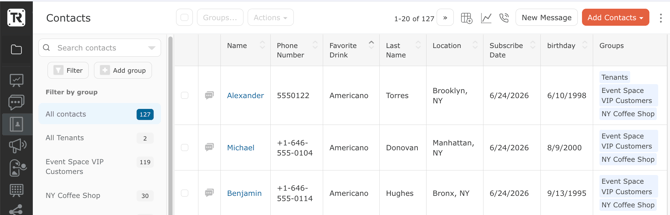
The Contacts page displays all contacts in your project in a sortable, searchable table. By default the columns shown are Name, Phone Number, and Groups. You can customize which columns appear by clicking the column settings icon in the header row, including any custom fields you have defined. Contacts can be sorted by any field except Groups.
The left panel shows all your groups with a member count for each. Clicking a group filters the table to show only members of that group. A Non-Members link appears below each selected group, letting you quickly see who is not in a group, which is useful for targeting people who have not yet responded to a campaign.
Filters: building a precise audience
Clicking Filter on the Contacts page opens the filter builder in the left panel. You select one or more fields to filter on, choose a condition for each, and the contact table updates in real time to show only contacts matching all conditions.
Every field type supports different conditions:
| Field type | Available conditions |
|---|---|
| Text (name, phone number, custom text fields) | is, is not, starts with, does not start with, alphabetically before, alphabetically after, alphabetically between, has any value, does not have value |
| Number (message counts, custom numeric fields) | equals, does not equal, is less than, is greater than, is between, has any value, does not have value |
| Date (Last Heard From, Last Contacted, Time Created, custom date fields) | is, is before, is after, is between, has any value, does not have value |
| Yes/No (Blocked, custom boolean fields) | is yes, is no |
Beyond custom fields, the filter builder exposes system fields including Conversation Status, Incoming Messages, Outgoing Messages, Last Heard From, Last Contacted, Last Updated, Time Created, and Blocked. This means you can filter for contacts who have not been heard from in 30 days, contacts with more than five incoming messages, or contacts whose conversation is marked active, without any custom field setup.
Multiple filter conditions stack as AND logic: a contact must match all selected conditions to appear in the results.
Static groups and dynamic groups
Once you have contacts in Telerivet, you organize them into groups for targeting, tracking, and automation. There are two types of groups and the distinction matters.
Static groups are fixed lists. You add or remove contacts manually, through an import, through a service action, or through the Groups button when contacts are selected. The group does not change on its own. Use static groups for cohorts that are defined by a one-time event: event registrants, an imported customer list, a program cohort, a batch of contacts opted in through a specific campaign.
Dynamic groups are defined by a filter rule. Contacts join or leave the group automatically as their data changes. To create a dynamic group, build a filter, then click Add group, name the group, and check Create dynamic group from current filter. From that point forward, any contact whose field values match the filter conditions is automatically a member, and any contact whose values no longer match is automatically removed.
Use dynamic groups for audiences that should stay current without manual work: contacts in a specific region, contacts who opted in within the last 30 days, contacts with a loyalty status of Active, contacts who have not responded to a poll.
| Static group | Dynamic group | |
|---|---|---|
| Membership changes | Manually or via service action | Automatically, as field values change |
| Best for | Event cohorts, imported lists, campaign batches | Ongoing segments, eligibility filters, always-current audiences |
| Created how | Add group button, import, service logic | Add group from an active filter |
The Subscription Time Field
When you edit a group (click the gear icon next to a group name), you will see a Subscription Time Field setting. This lets you associate a date field with the group: Subscribe Date, a custom date field like birthday, or a new field you define.
When a contact joins the group, Telerivet records the date in that field. This date then becomes available as the anchor for a relative campaign: a drip sequence that sends messages at intervals relative to when each contact joined, rather than on a fixed calendar date. A welcome sequence that sends on day 1, day 3, and day 7 after opt-in is built by setting the Subscription Time Field on the opt-in group and anchoring a relative campaign to that date variable.
For how relative campaigns use this date, see How Message Scheduling Works in Telerivet.
Bulk actions on filtered sets
After building a filter and selecting contacts (individually or using the select-all option), the Actions dropdown gives you several options beyond messaging:
- Invoke a service on the selected contacts, such as a feedback poll or a re-engagement flow. Any active service in your project appears here.
- Update a field in bulk across all selected contacts.
- Block or unblock sending for the selected set.
- Delete contacts from the project.
- Send Message to selected contacts.
This makes filters an operational tool, not just a viewing tool. You can find contacts who match a condition and act on them directly, without exporting a list or building a separate campaign just to trigger a service.
Audience Trends
The graph icon at the top right of the Contacts page opens the Contacts by Day chart. You add any group as a metric, set a date range, and toggle between daily and cumulative views. Multiple groups can be tracked side by side.
This chart is only as useful as your groups are meaningful. When services consistently assign contacts to well-named groups based on what those contacts have done (registered, completed a poll, opted out, upgraded their plan), the chart becomes a real reporting layer. An FMCG team can track event registrants by brand. A clinic can track appointment confirmations over time. A loyalty program can watch active member growth week by week.
The pattern visible in sophisticated Telerivet deployments is that deliberate group naming during service design produces a measurement layer without any additional analytics configuration. The reporting is a byproduct of clean architecture. For more on this, see Segmenting Your Audience for Better Results on the Telerivet blog.
How contacts connect to services and campaigns
Every major part of the Telerivet platform reads from or writes to contact records.
Services read contact fields to make decisions (if contact.vars.region equals "North", send this message) and write field values when contacts respond (store the reply in contact.vars.survey_answer). They add contacts to groups on completion and remove them on opt-out. The contact record is the working memory of every automated flow.
Campaigns target groups. A Message Broadcast goes to everyone in a selected group. A Relative Campaign goes to members of a group on a schedule anchored to a date field. The quality of the targeting depends entirely on how the groups were populated.
Personalization in messages pulls from contact fields using variable syntax. A message that begins "Hi [[contact.name]], your appointment on [[contact.vars.appointment_date]]" works because those fields exist and are populated. See How to Personalize Messages in Telerivet for the full syntax.
For a practical view of how this chain works across a real communication program, see Automated Services in Telerivet: What They Really Do on the Telerivet blog.
Frequently asked questions
What is the difference between a filter and a dynamic group in Telerivet? A filter is a temporary view: you set conditions, the contact list updates to show matching contacts, and when you close the filter the view resets. A dynamic group is a saved filter that persists as a named group. Contacts join and leave the dynamic group automatically as their data changes. Dynamic groups can be targeted by campaigns, referenced by services, and tracked in the Audience Trends chart.
How do I create a dynamic group in Telerivet? Build a filter using the Filter button on the Contacts page, then click Add group, name the group, and check "Create dynamic group from current filter." The group is saved and will automatically include any contact whose field values match the filter conditions from that point forward.
Can a service add a contact to a group automatically? Yes. Any service built with the Custom Actions rules engine can include an "Add contact to group" or "Remove contact from group" action as part of its logic. Opt-in services add contacts to a subscription group when they text a keyword. Poll services can add contacts to a "Respondents" group on completion. This is how group membership stays current without manual management.
What is the Subscription Time Field on a group? It is a setting on any group that records the date a contact joined the group into a specified date field. That date field can then be used as the anchor for a relative campaign, allowing you to send messages at intervals after opt-in, registration, or any other group-joining event rather than on a fixed calendar date.
Best practice tip
Name your groups to reflect what a contact has done, not just who they are. "Registered for Valentines Day 2025 Campaign" is more useful than "Valentine Contacts" because it tells you what action put them there, which makes the Audience Trends chart meaningful and makes it easier to build follow-up logic. When services write contacts into consistently named groups, your contact list becomes a live record of program activity, not just a directory.
For practical guidance on list-building and audience design, see Smart Ways to Grow Your Messaging Lists on the Telerivet blog.
Need help designing a segmentation structure for a multi-brand program, a loyalty campaign, or a large-scale field operation? Our Solution Engineers can help. Get in touch.