Many organizations send the same message to people on different channels and in different languages. A WhatsApp recipient can tap a button to reply, while someone on SMS needs to be told to "Reply yes or no." If your contacts speak different languages, each contact should get the version in their own language. Until now, that meant splitting your contacts into groups and sending several separate messages, broadcasts or campaigns.
With message variants, you can write all of those versions in one message. Telerivet picks the right version for each recipient when the message is sent.
What you can do with message variants
- Use the best features of each channel. Send quick reply buttons or a link button on WhatsApp and other chat apps, and plain text instructions on SMS.
- Add media where it's supported. Include an image or other attachment for WhatsApp or MMS routes, and a text-only version for SMS.
- Speak your contacts' language. Send each contact the version in their preferred language, based on a contact field.
- Tailor messages to a group. Send a different version to contacts in a particular group, such as staff or VIP customers.
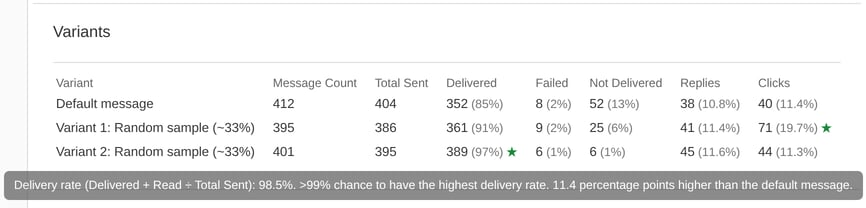
- Run A/B tests. Send different versions to random samples of recipients, and see which one gets better delivery, read, reply and click rates.
How it works
In the message editor, click the variants icon below the message, and choose a condition: Random sample, Route, Contact field, Contact group or Other variable. Your original message becomes the default message, and the new variant starts as a copy that you can edit, including its text, attachments, quick replies and link buttons.
For example, this appointment reminder has a Spanish variant for contacts whose Language field is "es", and a variant with Confirm and Reschedule buttons for routes that support quick replies. Everyone else gets the default message, which tells them to reply 1 or 2:
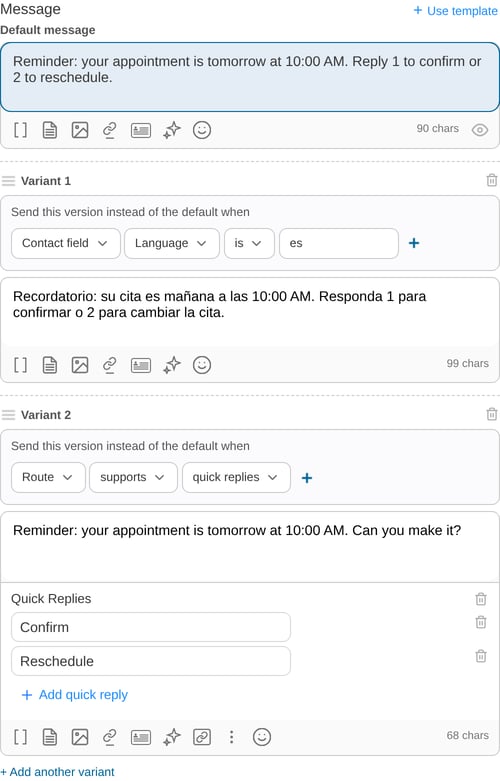
When the message is sent, Telerivet checks the variants in order and sends the first one whose conditions match, or the default message if none match. You can add up to 10 variants, each with up to 5 conditions, and drag them to change the order.
Route conditions are checked for the route that actually sends each message. So if you send through a custom route that uses both WhatsApp and SMS, each recipient gets the right version for their channel. And if a message fails over to a different route, Telerivet chooses the variant again.
A/B testing with random samples
To find out which version of a message works best, add a variant with a Random sample condition. For example, a variant with a random sample of 50% goes to about half of your recipients, and the other half get the default message. Each contact stays in the same sample for the whole broadcast or campaign, even if a message is resent.
You can also combine random samples with other conditions, for example to run separate tests for WhatsApp and SMS recipients, or for each language.
When you view the broadcast or campaign, the Variants table shows how each version performed: how many messages were delivered, read and failed, and how many recipients replied or clicked a link. A star (★) marks a version that has at least a 95% chance of having the highest rate, so you know when a difference is more than chance.
Where you can use message variants
Message variants work for text messages everywhere you write one:
- The New Message dialog, for sending or scheduling a message
- Broadcast and relative campaigns
- Scheduled messages
- Send and reply actions in automated services
- Poll questions and replies
- Message templates, which keep their variants when you save and reuse them
- The REST API, with the
variantsparameter
The Message Detail page and message exports show which variant each recipient received.
Getting started
Message variants are available now on all Telerivet plans. To try them, open the New Message dialog and click the variants icon below the message. For all the details, see Message Variants in the User Guide.
We'd love to hear how you use them. You can reach us at support@telerivet.com.