
Contact fields are the data layer that makes everything else in Telerivet work. They are what services read to make decisions, what campaigns use to personalize messages, what filters evaluate to build segments, and what relative campaigns anchor to for time-based scheduling. Choosing the right fields before you start importing is one of the most consequential decisions you make when setting up a Telerivet project, because the structure you build upfront determines what your programs can do automatically and what they cannot do at all.
Built-in fields and custom fields
Every contact in Telerivet has a set of built-in fields that exist by default:
- Name and Phone Number are the core identifiers.
- Last Heard From and Last Contacted track the most recent inbound and outbound message timestamps.
- Time Created records when the contact was first added to the project.
- Conversation Status, Incoming Messages, and Outgoing Messages track engagement activity.
- Blocked records whether sending to this contact has been disabled.
Beyond these, you can create up to 100 custom fields to store any information relevant to your program. Custom fields are where the architecture decisions happen.
Field types
When creating a custom field, you choose a type that determines what values it can store and which filter conditions apply to it.
| Field type | What it stores | Example |
|---|---|---|
| Text | Any string value | Region, plan name, vehicle model, preferred language |
| Number | Numeric values, supports range filters | Account balance, visit count, loyalty points |
| Yes/No | Boolean true/false | Loyalty member, consent given, verified |
| Dropdown | A fixed set of options you define | Customer tier (Bronze, Silver, Gold), status (Active, Inactive, Pending) |
| Date | A date or date-time value | Appointment date, registration date, subscription date, birthday |
Choose the simplest type that works. A field that only needs to record yes or no should be Yes/No, not Text. A field used in date-based scheduling must be Date, not Text. Filtering, sorting, and relative campaign anchoring all depend on the field type being correct.
The variable name: the bridge to automation
When you create a custom field, Telerivet automatically generates a variable name in the format contact.vars.field_name. Spaces become underscores and the name is lowercased. A field named "Favorite Drink" becomes contact.vars.favorite_drink. A field named "Loyalty Member" becomes contact.vars.loyalty_member.
This variable name is what the rest of the platform uses to reference the field:
- A message template that reads
Hi [[contact.name]], your next appointment is on [[contact.vars.appointment_date]]pulls the value of the Appointment Date field for each contact at send time. - A Custom Actions service with a condition "if
contact.vars.regionequals North, send this message" reads the Region field to decide which branch to follow. - A relative campaign anchored to
contact.vars.subscribe_dateuses the Subscribe Date field to schedule messages at intervals after opt-in. - A Cloud Script that validates an entry looks up
contact.vars.registration_statusto check whether this contact has already completed a flow.
The variable name is set when the field is created. You can rename the display label later, but changing the variable name after services or campaigns are using it will break those references. Get field names right early.
For how variable names work in message personalization, see How to Personalize Messages in Telerivet.
Field options
When creating or editing a field, three options control how it behaves.
Read-only marks a field as not editable through the UI or imports. Use this for fields that are written exclusively by services or external systems, such as a registration status field that a service updates as contacts move through a flow, or a score field that a Cloud Script calculates. Read-only prevents accidental overwriting and signals to anyone managing the project that this field is controlled by automation.
Lookup key designates this field as a match key for imports and API syncs. By default, phone number is the lookup key: when you import a row, Telerivet checks whether a contact with that phone number already exists, and if so updates it rather than creating a duplicate. You can set a secondary lookup key for any unique identifier your organization uses, such as a Customer ID, Staff ID, or CRM record ID. This is essential for keeping imported data clean when contacts may be imported multiple times from different sources.
Show on Conversations tab surfaces the field in the conversation view when an agent is responding to a message. Use this for fields that give an agent instant context: a customer tier, a case status, a risk category, a plan name. Fields marked this way appear in the sidebar alongside the conversation history.
Designing your field structure
The most avoidable source of data problems in Telerivet is building your field structure reactively rather than upfront. Once contacts are imported with inconsistent or missing values, correcting them requires re-importing or running a cleanup campaign, neither of which is free.
Before you add the first contact to a project, work through these questions:
- What will you filter on? Every dimension you want to segment by needs a field. If you need to target contacts by region, loyalty tier, or language preference, those need to be fields, not just something you know about your audience.
- What will you personalize with? Every variable you want to use in a message needs a field. First name, appointment date, product name, branch location: each of these requires a field to exist and be populated.
- What will services write? When a service captures a response and stores it, where does it go? Define the field before the service runs or the data has nowhere to land.
- What will campaigns anchor to? Date-based drip sequences need a date field per trigger point. An onboarding sequence, a renewal reminder, a birthday message: each needs a date field defined before the contacts who will receive it are imported.
- What will you report on? The Audience Trends chart tracks groups, but groups are most meaningful when they are populated by service logic that writes to fields. The fields come first.
Different programs will arrive at different field structures. A logistics operation might use Region, Zone, Route Code, and Vehicle Type. A healthcare program might use Clinic, Appointment Date, Visit Count, and Consent Status. A consumer brand might use Loyalty Tier, Favorite Product, and Last Purchase Date. Start lean and add fields as your program grows, but define the fields you know you need before the first import.
The Contact Fields page: your field governance view
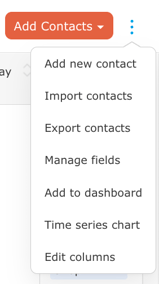 Outside of the import flow, fields are managed through Manage fields, accessible from the Add Contacts dropdown at the top right of the Contacts page. The same dropdown also gives you access to Export contacts, Time series chart, Edit columns, and Add to dashboard.
The Contact Fields page shows every field in your project in a single table: Field Name, Field Type, Variable Name, and Options. This includes both built-in fields and custom fields. Built-in system fields like Incoming Messages, Last Heard From, and Conversation Status appear as Read-only with no Delete option. Custom fields show Edit and Delete links. Fields can be reordered by dragging the handle on the left, which controls the order they appear in the contact record view.
This page is the right place to audit your field structure before a major import or campaign. You can see at a glance which fields have variable names (and therefore can be used in services and message templates), which are read-only, which are lookup keys, and which are surfaced on the Conversations tab for agents. In enterprise deployments or programs with multiple operators, it is good practice to designate one person as responsible for this page. Uncoordinated field creation, such as different people creating "Region," "region," and "region_name" as separate fields, is a common source of data quality problems that surfaces only when a service condition or a personalization variable fails silently.
One built-in field worth noting: Contact ID (contact.id) is a read-only, lookup-key field that Telerivet assigns to every contact. It can be used as a match key for API integrations and CRM syncs where an external system needs to reference Telerivet contacts by a stable identifier rather than phone number.
For full setup steps, see Adding Custom Fields in the User Guide.
Frequently asked questions
What is a contact variable name in Telerivet? A variable name is the system identifier for a custom contact field, in the format contact.vars.field_name. It is generated automatically when you create a field and is what services, message templates, and campaigns use to read or write that field's value. For example, a field named "Region" becomes contact.vars.region. The variable name should be treated as permanent once services or campaigns are referencing it.
Can I create contact fields during an import? Yes. When mapping columns during an import, any column marked as Unassigned can be mapped to a new custom field. A modal prompts you to enter the field name, choose a type, and set options (read-only, lookup key, show on conversations tab). The field is created immediately and applied to all contacts in that import. This is a convenient way to build your field structure while loading your first dataset.
What field types support date-based campaign scheduling? Only Date fields can be used as anchors for relative campaigns. If you want to schedule messages relative to an appointment, a registration, a subscription, or a birthday, the field storing that date must be created as a Date type, not a Text type. Text fields that contain date strings cannot be used for date math in campaign scheduling.
How many custom fields can a contact have in Telerivet? Up to 100 custom fields per project. For most programs this is more than enough. If you find yourself approaching that limit, it may be a signal to review whether some fields belong in a data table rather than on the contact record itself. Data tables are better suited for transactional records (individual purchases, event check-ins, code redemptions) than for persistent contact attributes. See Understanding Contacts in Telerivet: Lists, Filters, Groups, and Segmentation for how fields connect to the broader contact system.
Best practice tip
Treat your field structure as a contract between your contact data and your automation. A field named inconsistently, typed incorrectly, or left unpopulated for half your contacts will produce silent failures: a personalized message that sends a blank where a name should be, a service condition that never matches because the field value uses different capitalization, a relative campaign that skips contacts because their date field is empty. Before building any service or campaign that depends on a field, verify that the field exists, has the right type, and has values for the contacts you intend to reach.
For practical examples of how personalization fields work in messaging, see Simple Personalization Tactics That Make SMS Messages Feel More Human on the Telerivet blog.
Need help designing a field structure for a multi-brand deployment, a CRM integration, or a complex registration flow? Our Solution Engineers can help. Get in touch.